

On this page6 sections
Duplicate A Page in WordPress Elementor and save yourself time when creating similar layouts or reusing designs. Instead of rebuilding a page from scratch, duplicating lets you keep all the content, styling, and settings intact so you can make quick adjustments and launch faster.
In this guide, we will walk you through how to duplicate a page in WordPress Elementor step-by-step. Whether you are working on a blog post layout, a product page, or a custom landing page, these methods will help you speed up your workflow and maintain design consistency across your site.
Why Would You Duplicate a Page in WordPress?
Let’s say you’ve built a landing page with custom layouts, styled buttons, forms, and animations. You’re proud of it. Now you need to build five more pages just like it, same layout, different content.
Try to duplicate a page in WordPress instead of starting over or redoing every block. Here’s why it’s a smart move:
- Saves hours of manual work
- Maintains consistent branding across pages
- Reduces errors when copying layouts
- Helps you quickly test A/B variations
- Gives you a reusable template for future use
Once you learn this, you’ll wonder why you didn’t do it sooner.
Here’s How To Duplicate A Page In WordPress Using Elementor
There are actually two main ways to duplicate a page in Elementor, depending on what you want to achieve and how your site is set up. Let’s go over both like I’m walking you through a live tutorial.
Method 1: Save Page as a Template (Best Practice)
This is the most reliable and clean method, especially if you plan to reuse the same layout often.
Follow these steps:
- Open the page you want to duplicate in Elementor.
- Click the small arrow next to the Update button at the bottom.
- Choose Save as Template.
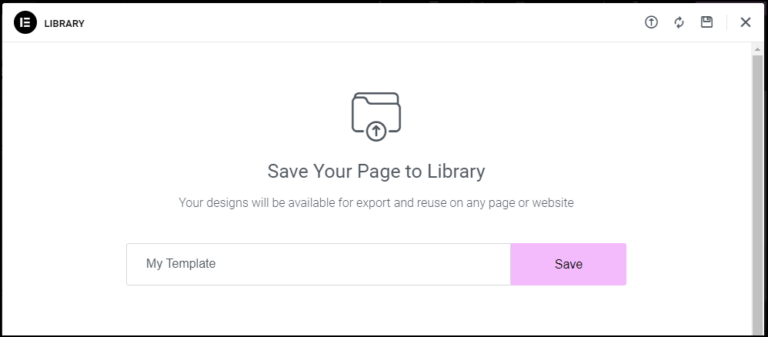
- Give it a name (like “Home Layout” or “Landing Page v1”).
- Now, create a new page.
- Click Edit with Elementor and open the Templates library.
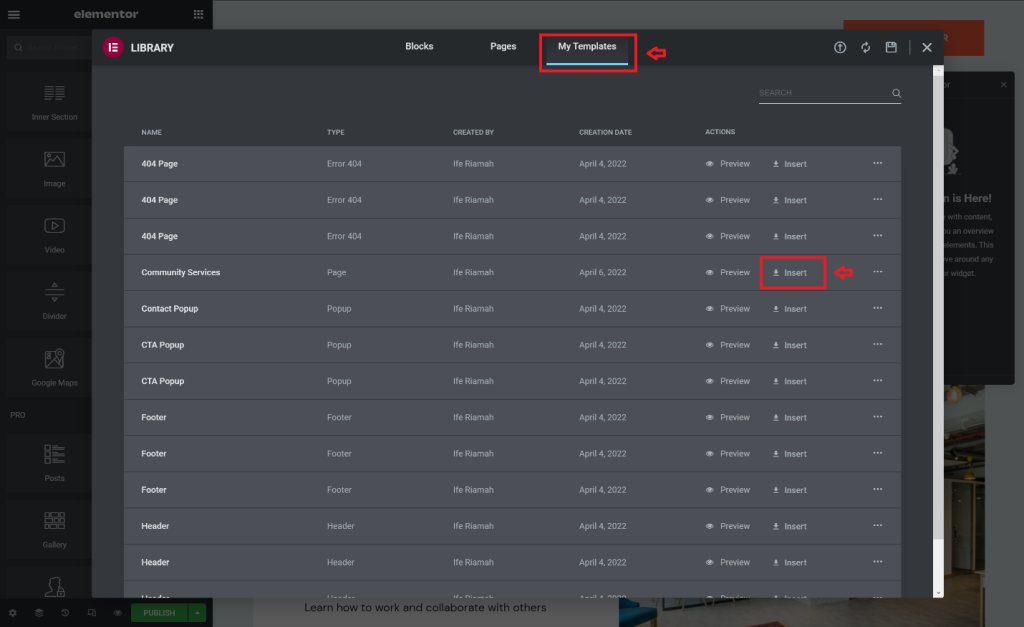
- Select the saved template and Insert it.
There you go. You’ve just duplicated a page in WordPress with only a few clicks. No plugins. No confusion. Would you like to make your design workflow even smoother?
Explore our plugin tools at GS Plugins to speed up page creation and customization.
Method 2: Use a Plugin for One-Click Duplication
If you prefer something even faster or want to duplicate an entire page (including settings and metadata), use a plugin like
- PowerUp
- Duplicate Page
- Yoast Duplicate Post
- Elementor Addons
PowerUp is the ultimate plugin to supercharge your WordPress site with essential features and modules. You can access everything from login/logout redirects to disabling comments, hiding the admin bar, adding header/footer scripts, or removing footer credits—just one click away.
Simplify your workflow, boost security, and take full control of your WordPress experience with PowerUp.

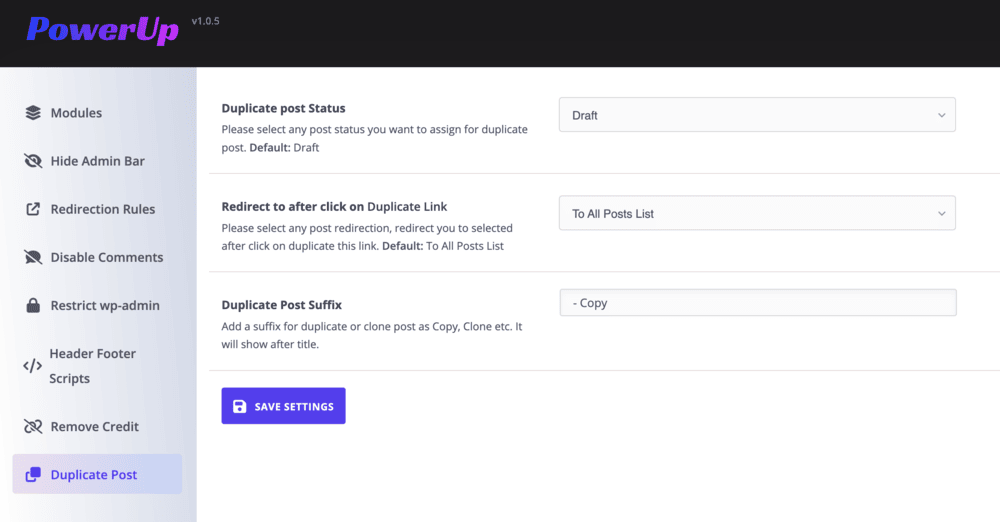
PowerUp – Duplicate Post Settings
Follow the steps below to configure duplicate post options:
- Duplicate Post Status
- Choose the status you want to assign to the duplicated post.
- Default: Draft
- Example options:
- Draft
- Published
- Pending Review
- Redirect After Clicking “Duplicate” Link
- Select where you want to be redirected after duplicating a post.
- Default: To All Posts List
- Example options:
- To All Posts List
- To the Edit Page of the Duplicate
- Duplicate Post Suffix
- Add a suffix to the duplicated post title (e.g., Copy, Clone).
- This helps differentiate the new post from the original.
- Example: If the original title is My Post, the duplicate will be My Post – Copy.
- Save Settings
- Once you’ve made your selections, click Save Settings to apply changes.
If you’re working with Elementor and want to reuse a design, the fastest method is to use a plugin to duplicate a page in WordPress Elementor. This saves time, keeps your layout consistent, and lets you build new pages without starting from scratch. It’s a simple one-click solution for bloggers, designers, and site owners alike.

- Install and activate the Duplicate a Page plugin.
- Go to Pages > All Pages in your dashboard.
- Hover over the page you want to clone.
- Click Duplicate This.
Now you’ll see a copy of your page, labeled “Draft.” Open it with Elementor, make your edits, and publish when you are ready.
Tip: This method is super helpful if you’re duplicating dozens of pages in bulk.
Key Tips When Duplicating Pages in Elementor
Here are some best practices to keep things tidy and efficient:
- Rename your duplicate immediately. Don’t keep “- Copy” in the URL or title.
- Update SEO settings. If you’re using plugins like Rank Math or Yoast, duplicate pages may carry over the same meta details. Edit them.
- Clean up images and links. Make sure they point to the correct destinations for the new page.
- Use global widgets. This allows you to change something once and reflect it on all pages.
Save reusable blocks. If you use the same call to action or pricing table across pages, save it as a block for quicker edits.
Why This Matters for WordPress Users Like You
As WordPress plugin users, you understand how valuable every saved minute is, especially when building for clients, eCommerce stores, or portfolio sites. When you duplicate a page in WordPress, you’re not just copying content; you’re replicating your own hard work, pixel-perfect.
And the bonus? Elementor makes this process as smooth as butter. Whether you’re a freelancer, agency owner, or DIY site builder, this skill will level up your efficiency.
Ready to streamline your entire WordPress workflow?
Explore our plugins designed to make your life easier.
FAQs
Will duplicating a page affect my SEO?
You can only publish the duplicate without altering the content or metadata. Always update titles, descriptions, and permalinks to avoid duplicate content issues.
Can I duplicate posts the same way as pages?
Yes. Many of the same plugins, such as Duplicate Page or Yoast Duplicate Post, are also compatible with posts.
Is duplicating the same as copying and pasting?
Not quite. Duplicating preserves layout structure, styles, widgets, and even SEO metadata. Copy-paste often misses these.
Can I use this method on a staging site?
Absolutely. Whether you’re working on staging or live, duplication methods work the same way.
Does Elementor Pro make duplication easier?
Elementor Pro gives you more flexibility with global widgets and templates, but the basic duplication steps are available in the free version as well.
Conclusion
Mastering how to duplicate a page in WordPress is a small skill that makes a big impact. It lets you scale your work, stay consistent, and save hours in design time. Whether you’re working solo or running a full digital agency, duplicating pages in Elementor should become second nature.
Now that you know both the plugin-free and plugin-based methods, you’re well-equipped to speed up your design workflow without sacrificing quality.
Duplicate smarter. Design faster. Deliver better. That’s how WordPress pros work.
Popular plugins
Plugins people love
Easy, well-supported plugins used on more than 55,000 sites.
 GS Logo SliderClient & partner logos
 Solid TestimonialsCustomer reviews & ratings
 GS Team MembersTeam profiles & bios
 GS Filterable PortfolioFilterable work galleries
 GS Projects ShowcaseProjects with details

Sarwar Zaman
Hi, I'm Sarwar Zaman, founder of GS Plugins, creating tools that make WordPress effortless and powerful. When I’m not diving into code, I’m a dad who loves spending quality time with my family. Besides traveling and reading novels, writing blogs is the way I connect with people, sharing tips and stories to make the web a better place.
More articles by Sarwar Zaman


