

On this page4 sections
A WooCommerce catalog can become messy faster than expected.
One product uses Navy, another uses Navy Blue, and a third uses Dark Navy. Sizes can be even worse, with terms like M, Medium, and Med all representing the same option.
These duplicate colors and sizes may look harmless at first, but over time they create extra admin work, inconsistent swatches, confusing filters, and harder product management.
The best fix is not another plugin setting. It starts with organizing your attribute terms properly.
Why Duplicate Attribute Terms Become a Real Problem
WooCommerce gives you a lot of freedom when creating product attributes.
That flexibility is useful, but it also makes it easy for different products, imports, or team members to create slightly different versions of the same term.
For example, your Color attribute may contain the following:
- Black
- Jet Black
- Black Color
- BLK
Your Size attribute may contain the following:
- Small
- S
- Sm
- Small Size
If these terms mean the same thing, keeping all of them creates duplicate colors and sizes that serve no real purpose.
The problem gets worse as your catalog grows because each duplicate term can affect swatches, product filters, imports, search, and reporting.
A clean attribute structure saves much more time than fixing these issues product by product later.
A Few Steps To Organise Product Terms Like a Pro
1. Start With Global WooCommerce Attributes
If you are managing a large catalog, global attributes should be your starting point.
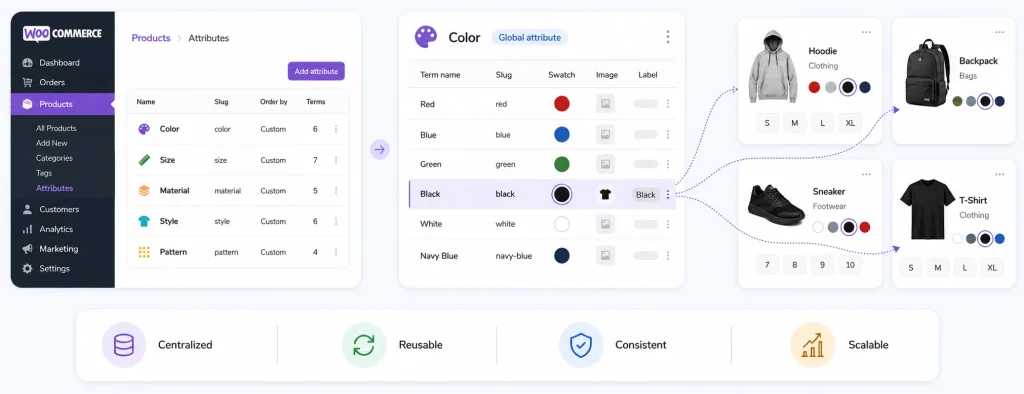
Go to:
Products → Attributes
Create reusable attributes such as the following:
- Color
- Size
- Material
- Style
- Pattern
Then add terms under each attribute.
For example, Color might contain the following:
- Red
- Blue
- Green
- Black
- White
- Navy Blue
Using global attributes makes it easier to prevent duplicate colors and sizes because you can reuse the same term across multiple products.
Instead of creating a new “Black” inside every product, you use the existing global Black term.
That gives you one central place to manage the name, slug, swatch color, image, or label.
2. Create a Clear Naming Standard
A naming rule sounds simple, but it can prevent a surprising amount of catalog cleanup.
Decide exactly how your store will name common terms.
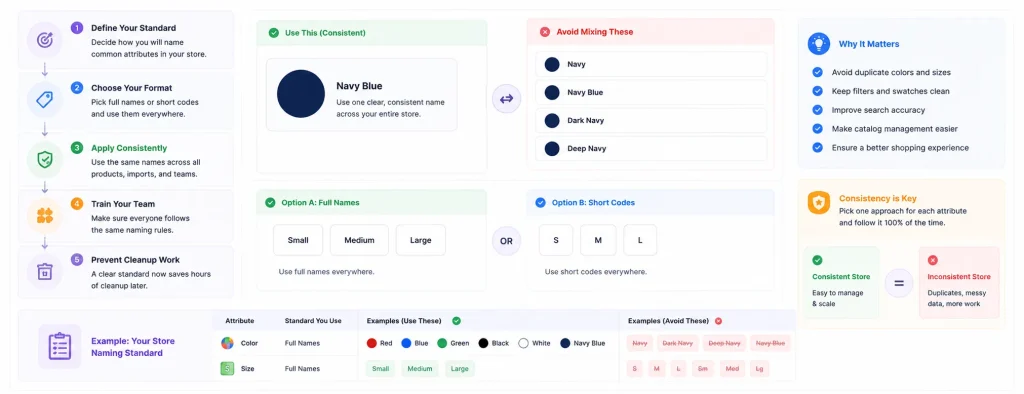
For example:
Use:
Navy Blue
instead of mixing:
- Navy
- Navy Blue
- Dark Navy
- Deep Navy
For sizes, decide whether your store will use:
Small, Medium, Large
or:
S, M, L
Both approaches can work. The important part is consistency.
If you use full names, use them everywhere.
A simple naming standard makes duplicate colors and sizes much easier to avoid because everyone working on the catalog knows what terms should already exist.
3. Search Existing Terms Before Creating New Ones
Before adding a new color or size, check whether an equivalent term already exists.
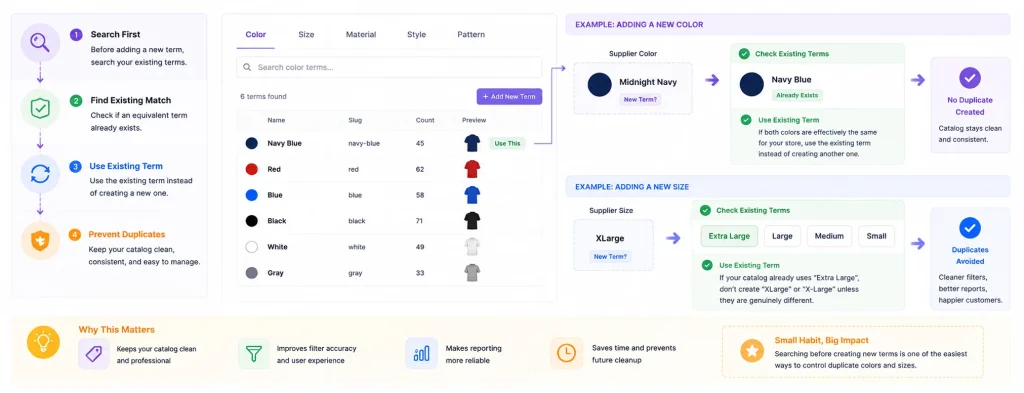
This small habit can prevent a large amount of duplication.
Suppose you are adding a new shirt and the supplier calls the color
Midnight Navy
Before creating that term, check your existing Color terms.
You may already have:
Navy Blue
If both colors are effectively the same for your store, use the existing term instead of creating another one.
The same applies to sizes.
If your catalog already uses “Extra Large,” do not create “XLarge” or “X-Large” unless they represent genuinely different options.
This is one of the easiest ways to control duplicate colors and sizes before they spread.
4. Clean Up Existing Duplicates Carefully
If your catalog already contains duplicated terms, do not start deleting them immediately.
First identify which term you want to keep.
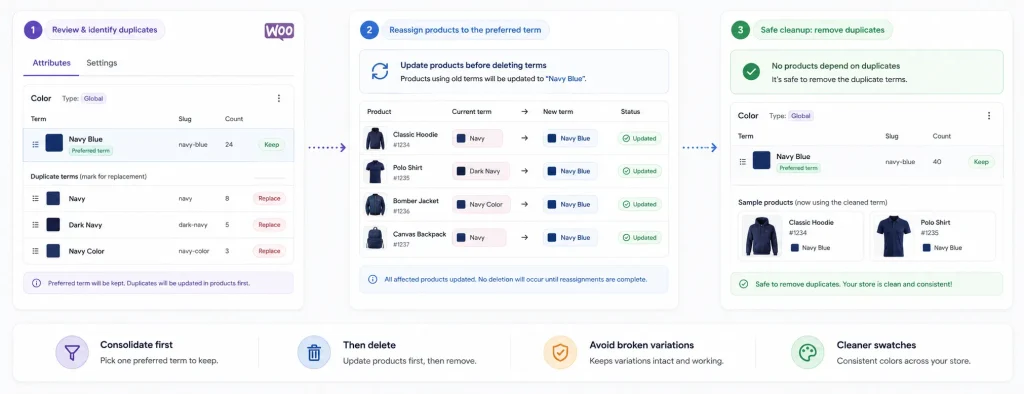
For example:
Keep:
Navy Blue
Replace:
- Navy
- Dark Navy
- Navy Color
Then find the products using the older terms and assign them to the preferred global term.
Once no products depend on the duplicate terms, you can remove them safely.
The same process works for duplicate colors and sizes across imported products.
The key is to consolidate first, then delete.
Deleting a term before checking where it is used can break variations or leave products with missing attribute selections.
5. Keep Slugs Consistent Too
The visible term name is only one part of the structure.
WooCommerce also uses slugs.
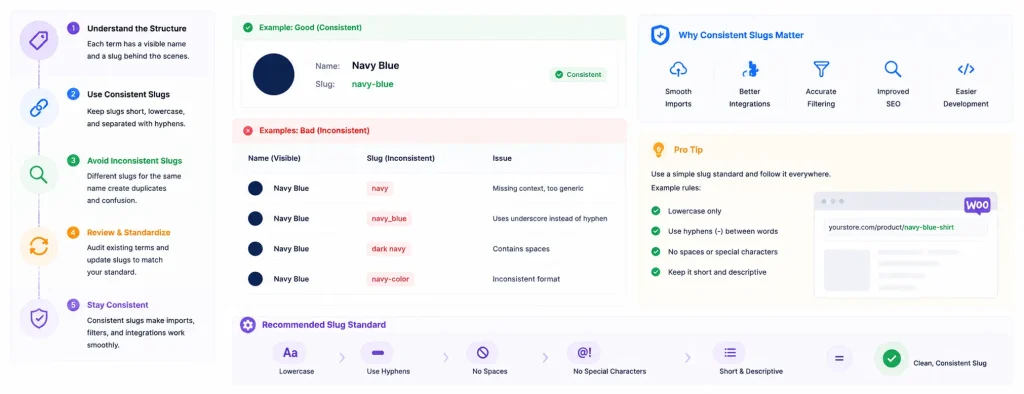
For example:
Name: Navy Blue
Slug: navy-blue
Avoid creating inconsistent slugs, such as
- navy
- navy_blue
- dark navy
- navy-color
A clean slug structure helps with imports, integrations, filtering, and development work.
If you are cleaning duplicate colors and sizes, review the slugs at the same time.
Consistent names with inconsistent slugs can still cause confusion when data moves between WooCommerce and external systems.
6. Standardize Imported Product Data
CSV imports, supplier feeds, and ERP integrations are major sources of duplicate attributes.
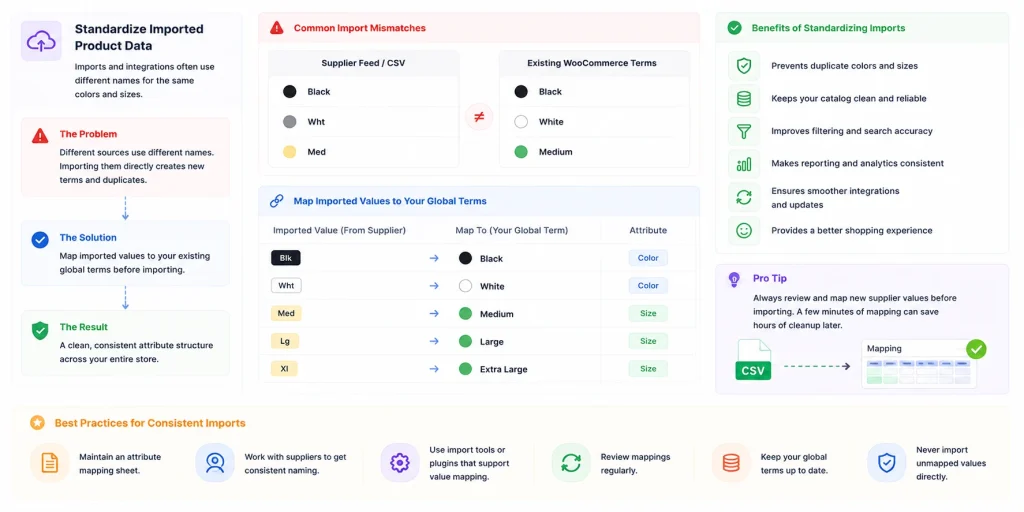
A supplier may send:
Black
while WooCommerce already contains:
Black
Another source may send:
Med
while your catalog uses:
Medium
If you import these values directly, WooCommerce may create new terms, and your duplicate colors and sizes problem grows automatically.
The better approach is to map imported values to your existing global terms.
For example:
Blk → Black
Wht → White
Med → Medium
Lg → Large
This keeps your store’s internal attribute structure consistent even when suppliers use different naming conventions.
7. Avoid Product-Level Custom Attributes When Possible
Custom attributes created directly inside individual products can be useful for unique cases.
But if the same attribute is used across many products, global attributes are usually easier to control.
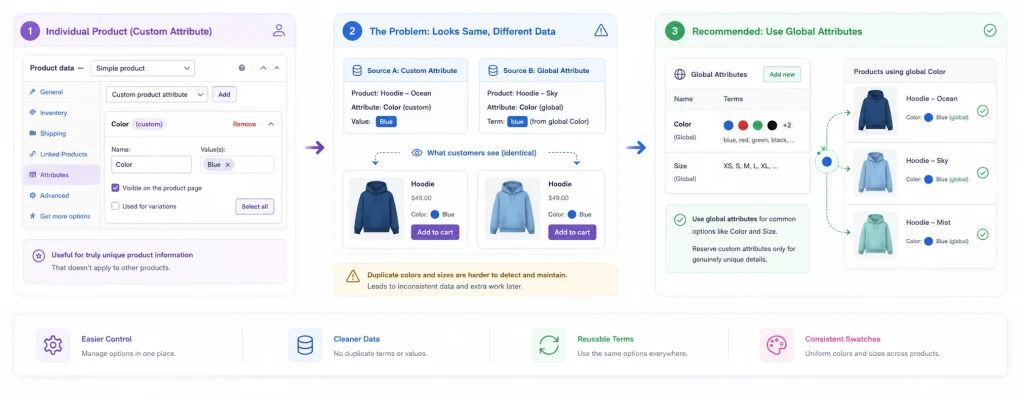
If one product has a custom Color attribute with Blue and another product uses the global Color term “blue,” you now have two separate pieces of data that look identical to a customer.
That makes duplicate colors and sizes harder to detect and maintain.
For common options such as Color and Size, use global attributes whenever possible.
Reserve product-specific attributes for genuinely unique information.
8. Review Swatch Colors After Consolidating Terms
Merging duplicate terms is only half the job if you use variation swatches.
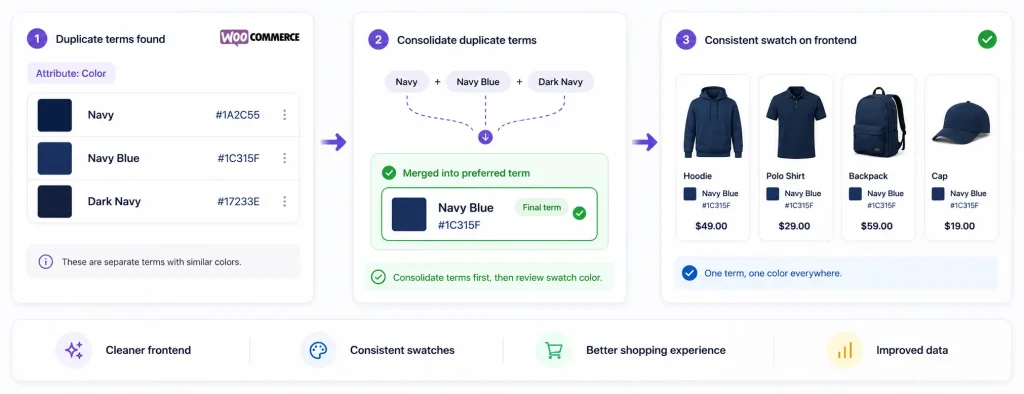
Suppose three duplicate terms previously had slightly different swatch colors:
Navy: #1A2C55
Navy Blue: #1C315F
Dark Navy: #17233E
After consolidating them into one term, choose one final swatch color and use it consistently.
This keeps the frontend visually clean.
Customers should not see different shades representing the same term across different products.
Cleaning duplicate colors and sizes should improve both your backend data and the shopping experience.
9. Give Your Team a Simple Attribute Rulebook
If multiple people manage products, catalog inconsistency can return quickly.
You do not need a complicated document.
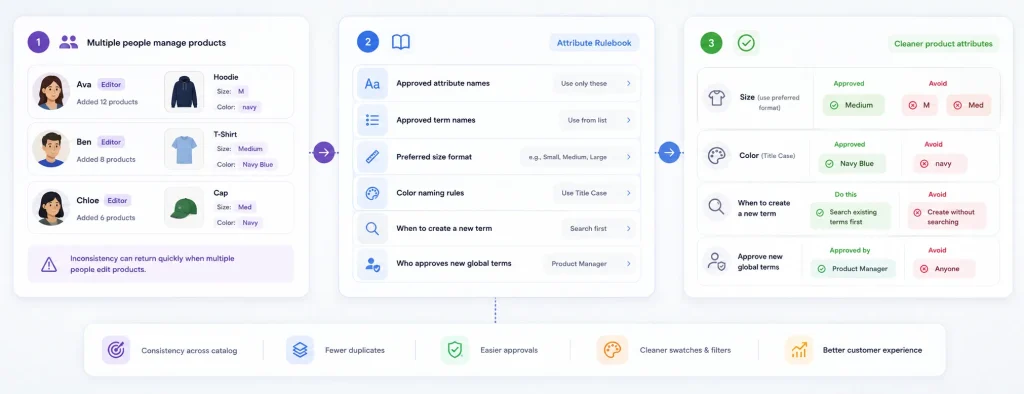
A simple internal reference can include:
- Approved attribute names
- Approved term names
- Preferred size format
- Color naming rules
- When a new term should be created
- Who approves new global terms
For example:
Use “Medium,” not “M” or “Med.”
Use Navy Blue, not navy.
Search existing terms before creating a new one
These small rules can dramatically reduce duplicate colors and sizes over time.
10. Review Your Attribute Terms Regularly
Even a well-organized catalog needs occasional maintenance.
New products arrive. Suppliers change their feeds. Staff members make mistakes.
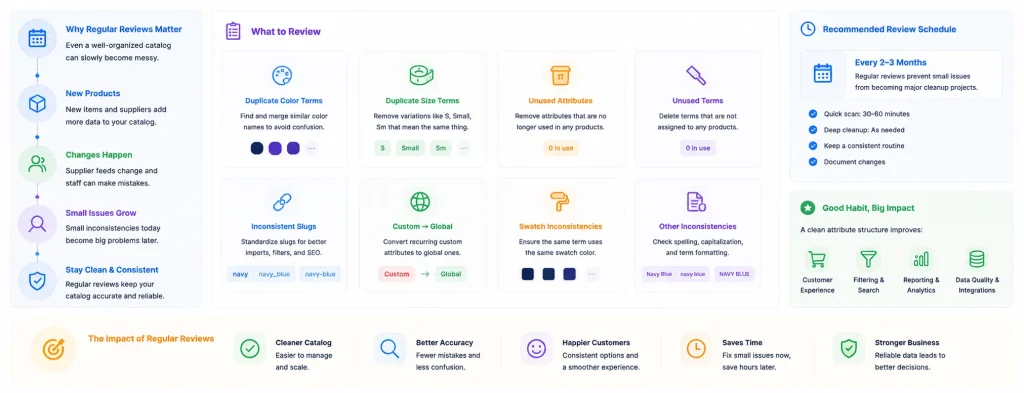
Every few months, review:
- Duplicate color terms
- Duplicate size terms
- Unused attributes
- Unused terms
- Inconsistent slugs
- Custom attributes that should be global
- Swatches with different colors for the same term
Regular cleanup keeps duplicate colors and sizes from becoming a much larger project later.
It is much easier to fix five inconsistent terms today than fifty next year.
FAQs
Why does WooCommerce create duplicate colors and sizes?
WooCommerce may end up with duplicate colors and sizes when users create slightly different terms, products use custom attributes, or imported data contains inconsistent values such as “Black,” “BLK,” and “Black Color.”
Should I delete duplicate attribute terms immediately?
No. First check which products and variations use the duplicate terms. Reassign those products to the preferred global term before deleting anything to avoid breaking variation data.
Are global attributes better for preventing duplicate colors and sizes?
Yes. Global attributes make it easier to reuse one standardized term across many products. This reduces duplicate colors and sizes and gives you centralized control over swatches, names, and slugs.
How can I stop imports from creating duplicate terms?
Before importing, map supplier or CSV values to your existing global WooCommerce terms. For example, convert BLK to Black and Med to Medium instead of allowing new terms to be created.
Can duplicate colors and sizes affect customers?
Yes. Inconsistent terms can create confusing filters, repeated options, mismatched swatches, and unclear variation choices. A clean attribute structure gives customers a more consistent shopping experience.
Conclusion
Duplicate colors and sizes usually start as small naming inconsistencies, but they become much harder to manage as your WooCommerce catalog grows.
Use global attributes, follow a clear naming standard, map imported values, and reuse existing terms instead of creating new ones unnecessarily.
A cleaner attribute structure means fewer mistakes, easier swatch management, and a catalog that stays organized as your store grows.

Made by GS Plugins
Try Variation Swatches
Replace variation dropdowns with color, image and button swatches.
- Color, image & button swatches
- Replaces variation dropdowns
- Faster product choices

Sarwar Zaman
Hi, I'm Sarwar Zaman, founder of GS Plugins, creating tools that make WordPress effortless and powerful. When I’m not diving into code, I’m a dad who loves spending quality time with my family. Besides traveling and reading novels, writing blogs is the way I connect with people, sharing tips and stories to make the web a better place.
More articles by Sarwar Zaman


